
How to Resolve Google Sheet Permission Issues and Complete Verification
Resolve Google Sheet permission errors and complete sheet verification in GroupLeads. Follow this guide to request Editor access from the sheet owner and verify your Google Sheet link in the GroupLeads sidebar extension.

Prerequisites
- An active GroupLeads sidebar extension installation with a valid license key.
- A Google account logged into your browser.
- A Google Sheet URL pasted into the Setup tab of your group inside the GroupLeads sidebar extension.
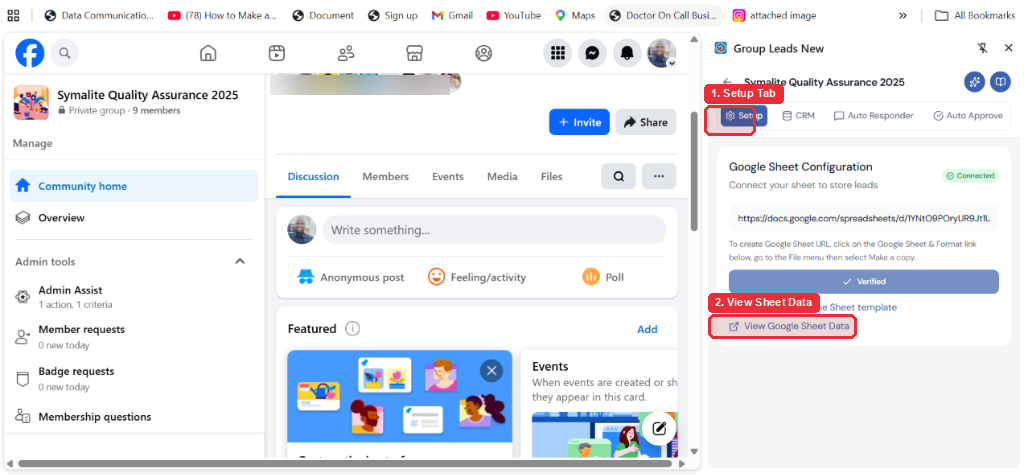
Open the GroupLeads sidebar extension from your Chrome side panel, select your Facebook group, and click the Setup tab.
Step 2: Open the Linked Google Sheet
Click View Google Sheet Data under Google Sheet Configuration to open your linked spreadsheet in a new browser tab.
Step 3: Request Editor Access from the Sheet Owner
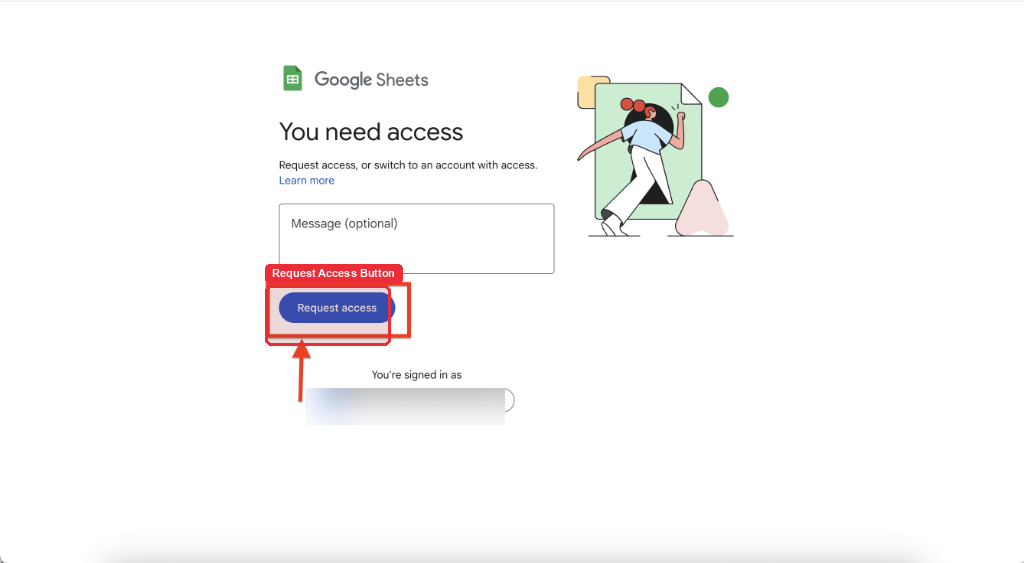
Click Request Edit Access at the top of the screen if the spreadsheet opens in View Only mode. Enter a short request message and click Send.
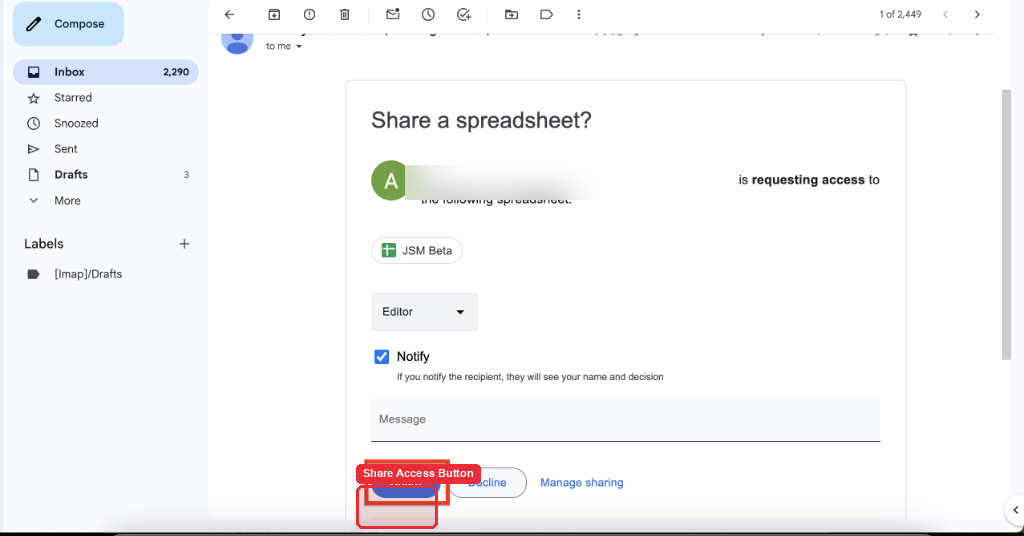
Note: The Google Sheet owner receives an automated email notification with your request. You can complete verification once the owner grants Editor permissions.
Step 4: Confirm Your Editor Access Level
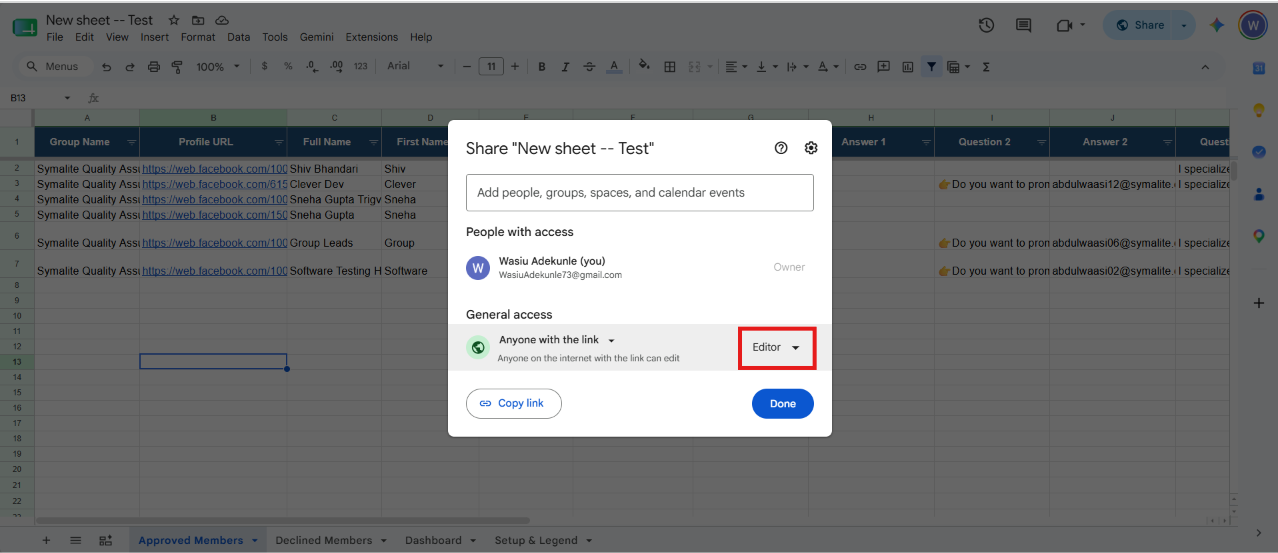
Open the shared Google Sheet once access is granted, click Share in the top right corner, and confirm that your email account lists as an Editor.
Step 5: Verify Your Sheet in GroupLeads Sidebar
Return to the GroupLeads sidebar extension under the Setup tab and click Verify (or Verified). Confirm that a green Connected badge displays next to your Google Sheet URL.
Tip: Reload your Facebook group page after successful verification to clear any pending setup warnings.

✅ You're all set — your Google Sheet permissions are updated and successfully verified in GroupLeads.
Troubleshooting / Related Articles
- Verification Fails: Double-check that your active browser profile matches the Google account granted Editor permissions.
- Wrong Account Logged In: Sign out of secondary Google accounts or open the sheet in the browser profile where GroupLeads is installed.
- Group Leads Google Sheet Permission Guide
- How to Connect a Google Sheet to GroupLeads