
How to Manually Install the Unpacked GroupLeads Chrome Extension
If you need to install an instant fix or testing build before it becomes publicly available on the Google Chrome Web Store, you can manually install the unpacked GroupLeads extension zip file on your Chrome browser.
Follow the step-by-step instructions below to download, extract, and load the unpacked GroupLeads extension.
Step 1: Download the Extension Zip File
- Click the download link provided by the support team (e.g., Google Drive link).
- On the download page, click the Download icon (⬇) in the top bar to save the
.zipfile to your computer.

- Open your computer's Downloads folder (or the location where the zip file was saved).
- Right-click on the downloaded
.zipfile (e.g.,groupleads-extension04SeptV6.0.4.zip). - Select Extract All... from the context menu.
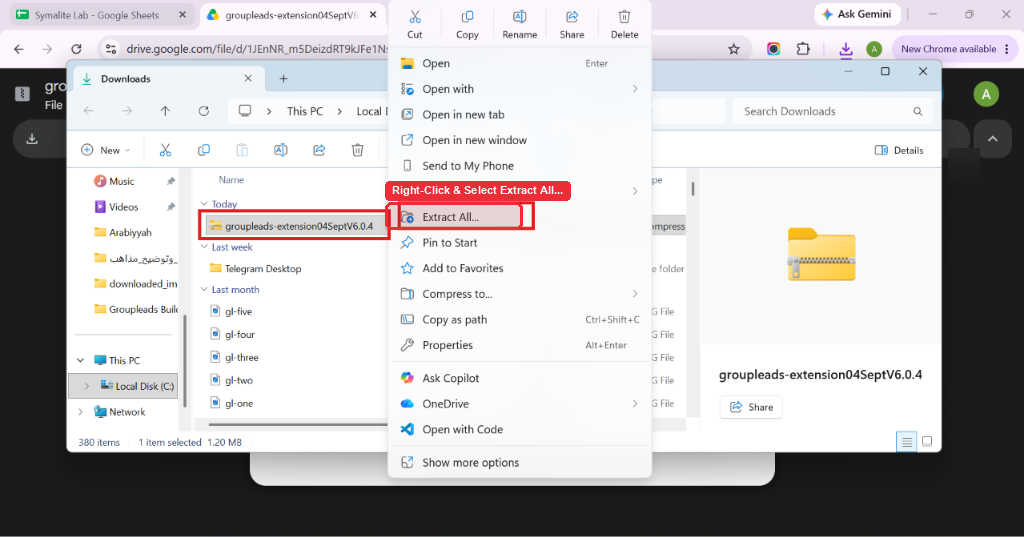
- In the pop-up window, click Extract to unpack the files into a regular folder.

- Open a new tab in your Google Chrome browser.
- Type
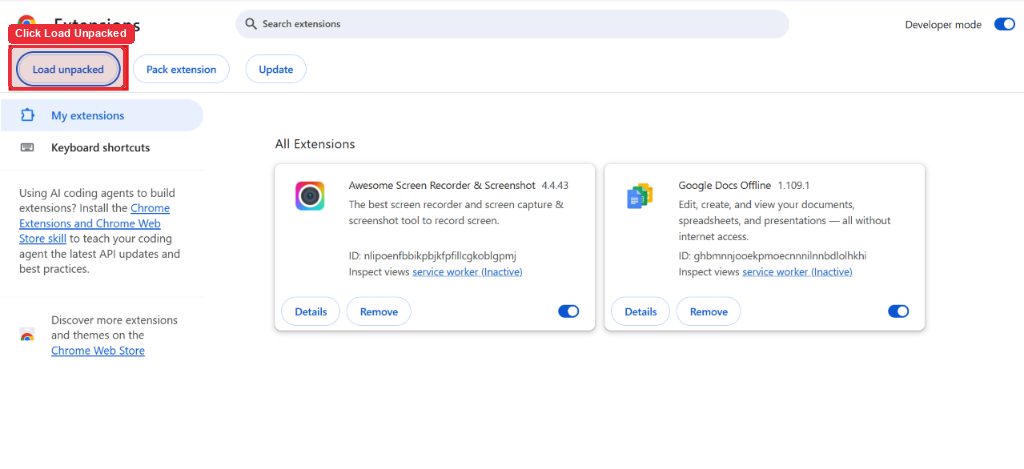
chrome://extensions/into the address bar and press Enter (or go to Chrome Menu (⋮) > Extensions > Manage Extensions). - Look at the top-right corner of the Extensions page and toggle ON the Developer mode switch.

- Once Developer mode is enabled, click the Load unpacked button in the top-left corner.
- In the file picker window, navigate into the extracted folder (e.g.,
groupleads-extension04SeptV6.0.4). - Click into the folder until you see the inner
groupleads-extensionfolder containing subfolders (content,images,media,assets). - Click Select Folder.

- The GroupLeads extension (e.g.,
GroupLeads 6.0.4) will now appear in your active Chrome extensions list. - Confirm that the extension toggle switch is turned ON.

✅ You're all set! The local build of GroupLeads is now active in your Chrome browser and ready to process your group leads immediately.