
How to Send Broadcast Messages to Existing Facebook Group Members
Send personalized broadcast direct messages to existing members of your Facebook group. Learn how to select bulk member lists and dispatch automated message variations using the GroupLeads sidebar extension.
Prerequisites
- Facebook Group Admin or Moderator permissions for the target group.
- An active GroupLeads sidebar extension installation with a valid license key.
- Broadcast messaging enabled in your extension settings under Auto Responder > Send Broadcast to Existing Members.
- Configured broadcast message template and variations inside the GroupLeads sidebar extension.
Step 1: Open Your Facebook Group Members Tab
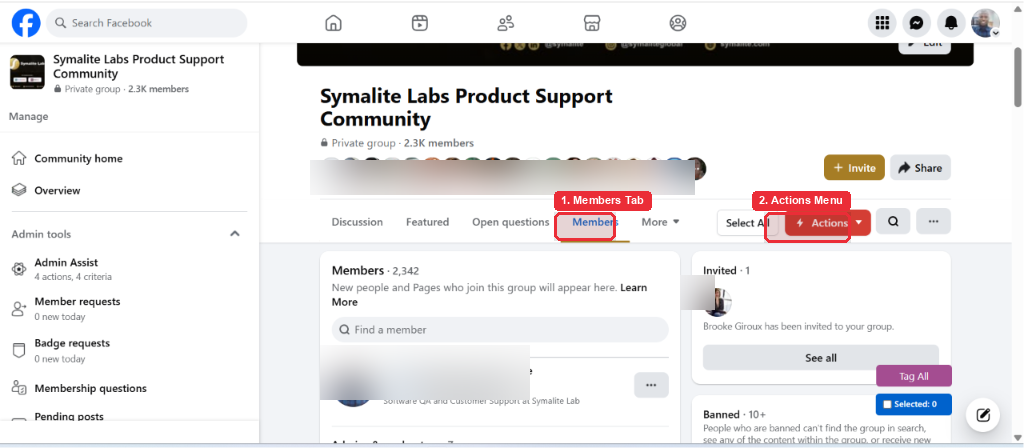
Log in to Facebook, navigate to your Facebook group, and click Members in the group navigation tab.
Step 2: Select the Starting Member for Broadcast
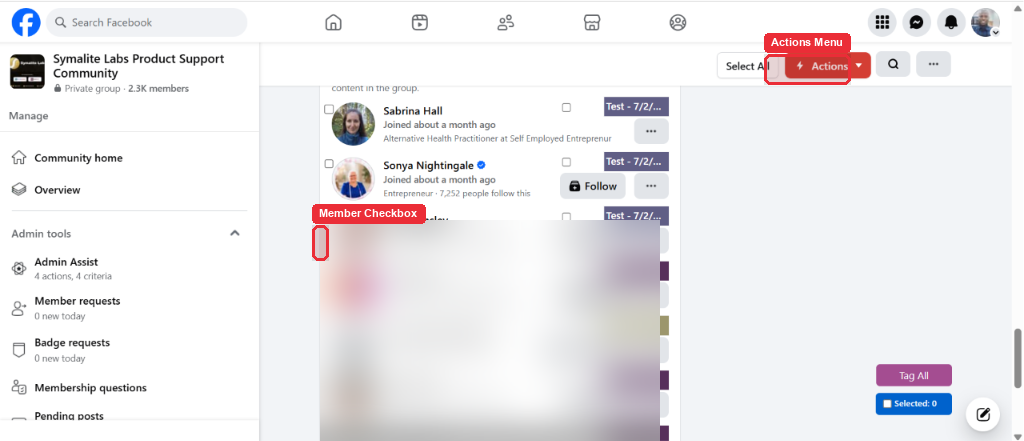
Scroll through the member list to locate the first member you want to message, then click the checkbox next to their profile name.
Note: Selecting an initial member activates the top bulk selection toolbar.
Step 3: Auto-Select Bulk Members Using Add Next 30
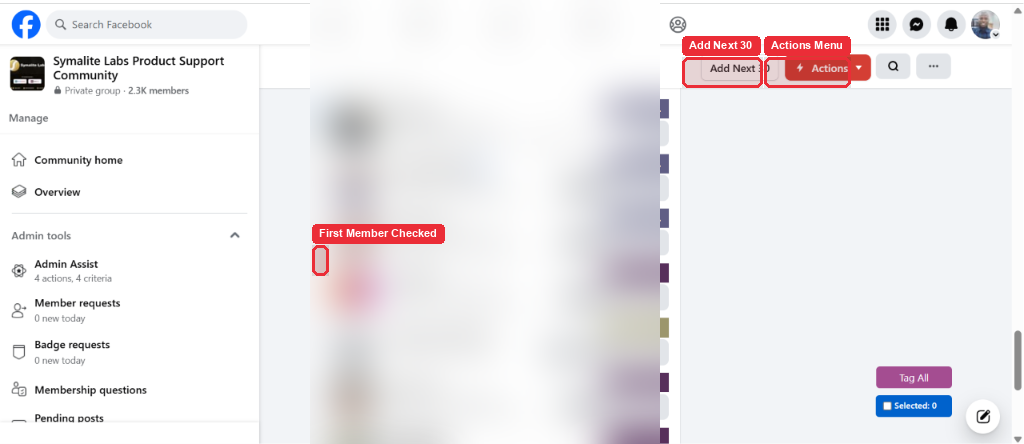
Click Add Next 30 in the top navigation bar to automatically select the next 30 consecutive group members starting from your initial selection.
Tip: Use Add Next 30 to rapidly queue batch message sends without manually selecting individual members.
Step 4: Open Actions Menu and Select Broadcast to Members
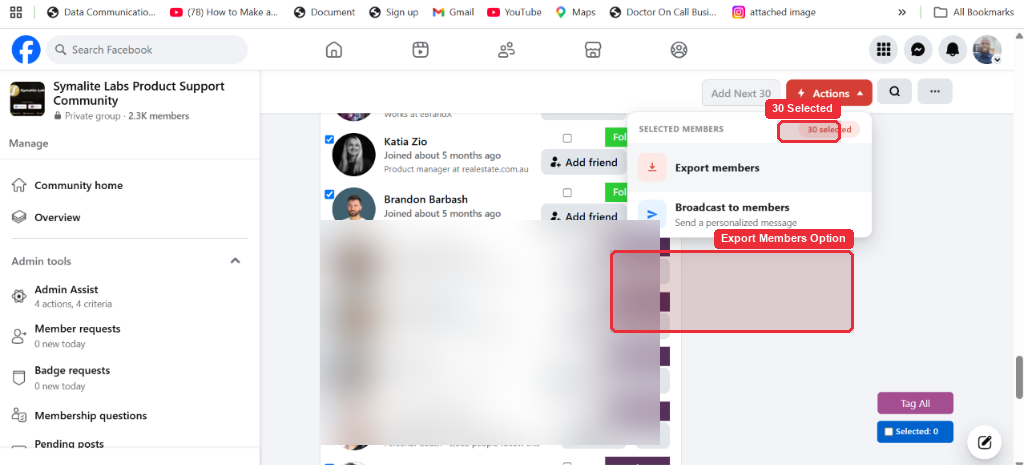
Click Actions in the top navigation bar, then select Broadcast to members from the dropdown menu.
Note: Ensure Send Broadcast to Existing Members is enabled in your GroupLeads sidebar settings under Auto Responder to display the Actions menu and the Broadcast to members option.
Step 5: Confirm Broadcast Message Delivery Progress
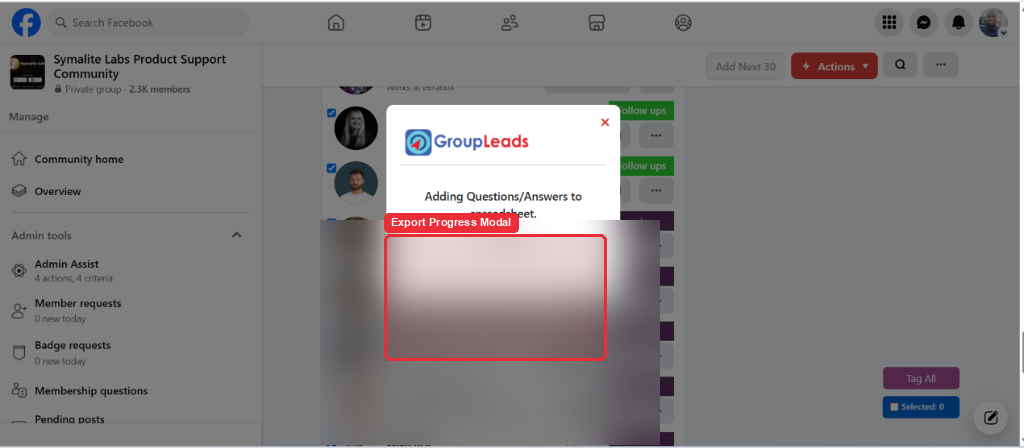
Observe the automated broadcast process as GroupLeads dispatches your configured message variations to selected members via facebook.com/messages .
Warning: Keep your message send intervals within safe limits using GroupLeads Smart Timing to maintain optimal account health.
✅ You're all set — your broadcast messages are queued and sent to your selected group members.